How to replace a file in multiple folders at once
You have a new logo.png, config.ini or template, and the old one sits in 40 different subfolders. File Explorer and Finder can't do this in one go, but a one-line command can. Here's how, on Windows, Mac and Linux, with a preview and a backup.
Before you run anything
- See how many copies there are before replacing any. Each method below starts with a command that only lists them.
- Same name doesn't mean same file.
index.html,config.iniandcover.jpglive in many folders for good reasons. Check the list and make sure every copy should really change. - Make a backup. Overwriting is instant and there's no undo. The commands below include a backup step.
- Keep the new file outside the folder you're updating, or the command will try to copy it onto itself.
Windows: PowerShell
Open PowerShell. First, list every copy:
Get-ChildItem -Path "C:\Projects" -Recurse -Filter "logo.png"Back each one up as logo.png.bak, next to the original:
Get-ChildItem -Path "C:\Projects" -Recurse -Filter "logo.png" | ForEach-Object { Copy-Item $_.FullName "$($_.FullName).bak" }Do a dry run. -WhatIf prints what would happen without changing anything:
Get-ChildItem -Path "C:\Projects" -Recurse -Filter "logo.png" | ForEach-Object { Copy-Item "C:\New\logo.png" $_.FullName -WhatIf }If the list looks right, run it again without -WhatIf. Add -Force if some copies are read-only.
Windows: Command Prompt
for /r "C:\Projects" %f in (logo.png) do @if exist "%f" copy /y "C:\New\logo.png" "%f"This walks every folder under C:\Projects and copies over logo.png wherever one exists. In a .bat file, write %%f instead of %f. There's no dry run, so back up first.
Mac and Linux
List every copy:
find ~/Projects -type f -name 'logo.png'Back each one up as logo.png.bak:
find ~/Projects -type f -name 'logo.png' -exec cp {} {}.bak \;Replace them all:
find ~/Projects -type f -name 'logo.png' -exec cp -v ~/New/logo.png {} \;Use -iname instead of -name to match Logo.PNG and other capitalizations too.
Copying a file into every folder, where it isn't yet
If you want the file added to every subfolder, not just the ones that already have it, copy it into each folder instead. In PowerShell:
Get-ChildItem -Path "C:\Projects" -Directory -Recurse | ForEach-Object { Copy-Item "C:\New\readme.txt" $_.FullName }On Mac and Linux:
find ~/Projects -type d -exec cp ~/New/readme.txt {} \;A whole set of files, not just one
One file is easy. Fifty updated files, each in its own place in a big folder tree, is where these commands get messy. You have to loop over every name, avoid same-named files that shouldn't change, and decide what happens with files that don't exist yet.
If your new files are in the same folder layout as the destination, the command-line copy tools can update only files that already exist: robocopy with /XL on Windows, or rsync --existing on Mac and Linux. Both need the paths to line up exactly. BulkFileReplace vs robocopy and rsync compares them.
What can go wrong
- A copy that should have stayed different gets replaced, because it had the same name.
- Files in use or read-only fail partway through, leaving some copies old and some new.
- Synced folders (OneDrive, Dropbox, Google Drive) send every overwrite to all your devices. Their version history may save you; check before relying on it.
- No undo, other than the
.bakfiles, if you made them.
With a preview and undo: BulkFileReplace
BulkFileReplace does this for one file or hundreds, on Windows and Linux:
- Drop your new files (loose, a folder or a ZIP) and choose the folder to update.
- It matches by path first, then by name, across every subfolder.
- When a name matches more than one place, it asks. Those files are never picked for you: tick the locations to update, then Done.
- Review the whole list (Replace, Add, No change) with previews of images and text, then Apply.
- Undo any run from History. Every original is backed up first.
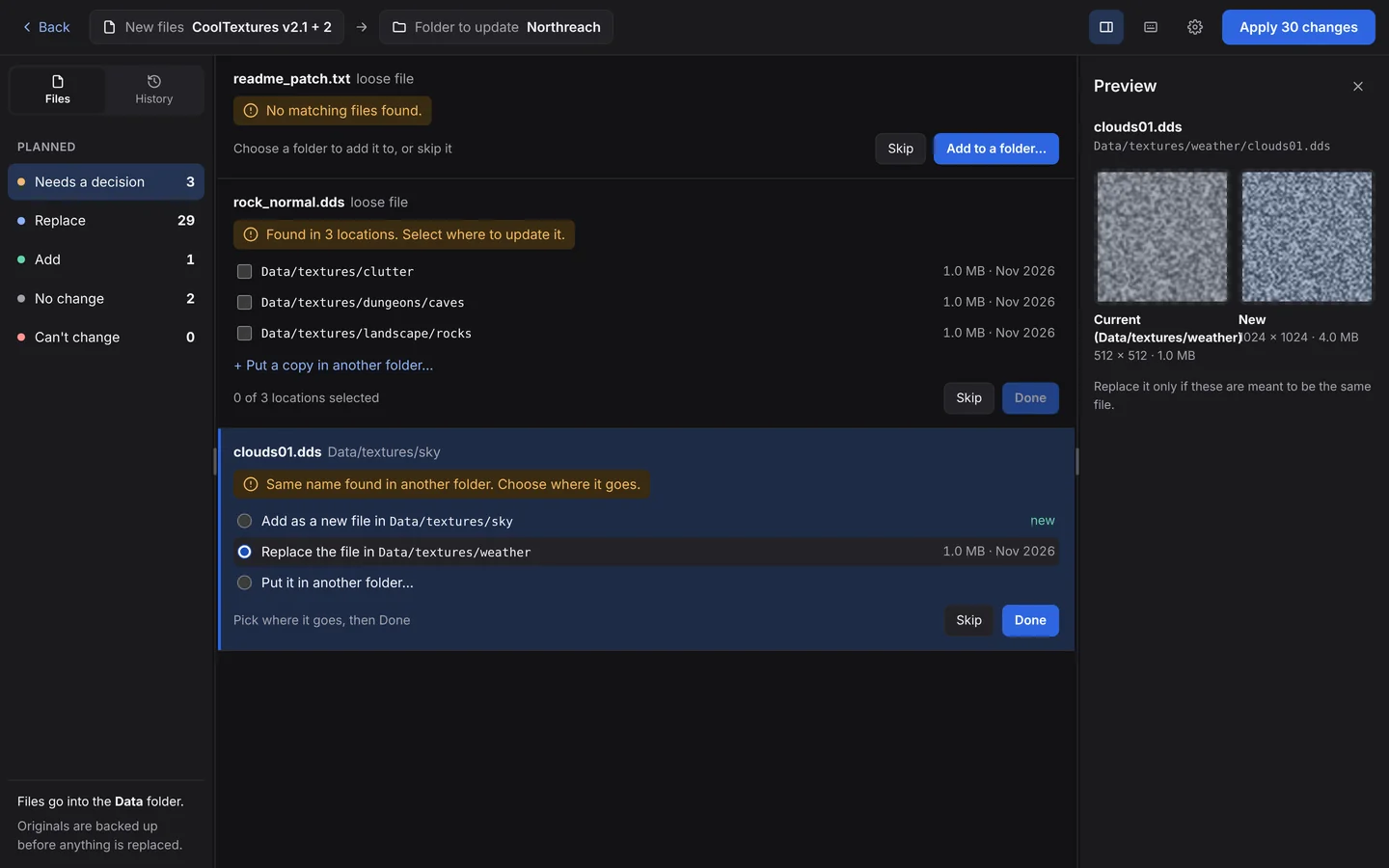
Two new files aimed at the same file (say, a settings.ini from a folder and a loose one) are flagged too, so you pick which one wins.
Questions
How do I replace a file in multiple folders in Windows?
In PowerShell: Get-ChildItem -Path "C:\Projects" -Recurse -Filter "logo.png" | ForEach-Object { Copy-Item "C:\New\logo.png" $_.FullName }. Run it with -WhatIf first to see what it would change.
How do I copy a file to multiple folders at once?
Use a command that loops over the folders: Get-ChildItem -Directory -Recurse with Copy-Item in PowerShell, or find -type d -exec cp on Mac and Linux.
Can I replace only some of the files with the same name?
Yes. Check the list first and leave out the copies that should stay. In BulkFileReplace, files with several matches wait for you to pick the locations to update.
Is there a way to undo it?
Only if you made backups first. BulkFileReplace backs up every original and can undo any run.
Bulk file replacement, done right.
Preview every change, automatic backups, undo any run. $19 once.