How to replace files in multiple subfolders at once
You have a new version of a file, and copies of the old one are scattered through dozens of subfolders. Here are three ways to replace them all, from fully manual to fully checked.
Option 1: File Explorer search (small jobs)
- Search the top folder for the file name. Open the folder in File Explorer and type the exact name in the search box.
- Open each result's location (right-click → Open file location).
- Paste the new file and choose "Replace the file in the destination" each time.
Fine for three or four copies. Past that, it's slow, easy to miss one, and there's no record of what you replaced.
Option 2: A command (fast, no safety net)
On Windows, in PowerShell, this replaces every logo.png under D:\Projects with C:\New\logo.png:
Get-ChildItem -Path "D:\Projects" -Recurse -Filter "logo.png" |
  ForEach-Object { Copy-Item "C:\New\logo.png" $_.FullName -Force }
On Linux:
find ~/Projects -type f -name "logo.png" -exec cp ~/New/logo.png {} \;Both work, and both overwrite instantly: no preview, no backup, no undo. Run them against a copy first, and check the file name can't match something you didn't mean.
Option 3: BulkFileReplace (preview, backup, undo)
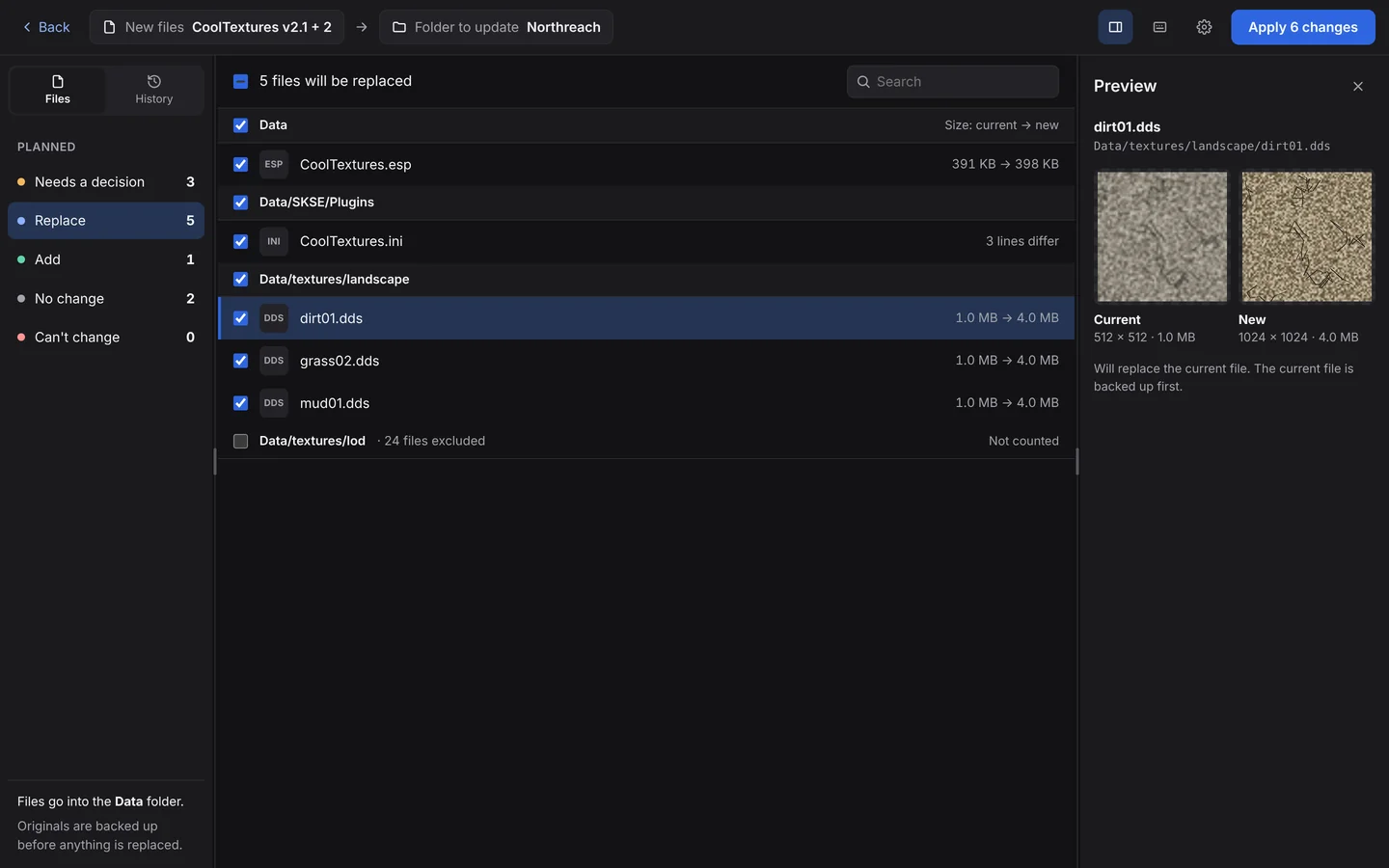
- Drop the new files (or a folder, or a ZIP) into BulkFileReplace.
- Choose the folder to update. It searches every subfolder for matches.
- Review the plan. Each file shows where it goes. Files with several matches wait for you to pick.
- Apply. Originals are backed up first; Undo restores them in one click.
For a quick one-off with a handful of files, the free web tool does name matching right in Chrome or Edge.
Questions
Can I replace a file in all subfolders without a script?
Yes. Use File Explorer search for a few copies, or BulkFileReplace for many: drop the new file, pick the top folder, review and Apply.
How do I undo a bulk replace?
With a command, you can only restore from your own backup. BulkFileReplace keeps a verified backup of every original and has a one-click Undo for each run.
Bulk file replacement, done right.
Preview every change, automatic backups, undo any run. $19 once.