Guide
How to put edited photos back into their original folders
Edits usually come back as one flat folder. The originals are spread across day, card or client folders. Here's how to reunite them.
Before you start
- Keep file names unchanged when exporting or sending edits out. Matching depends on it.
- Same format? A JPG can only replace a JPG with the same name. If edits come back as TIFF, they'll sit beside the originals instead.
- Back up the originals, or use a tool that does.
By hand
Search your shoot folder for each file name, open its location, paste, replace. Workable for ten photos, painful for three hundred.
With BulkFileReplace
- Drop the folder of edits.
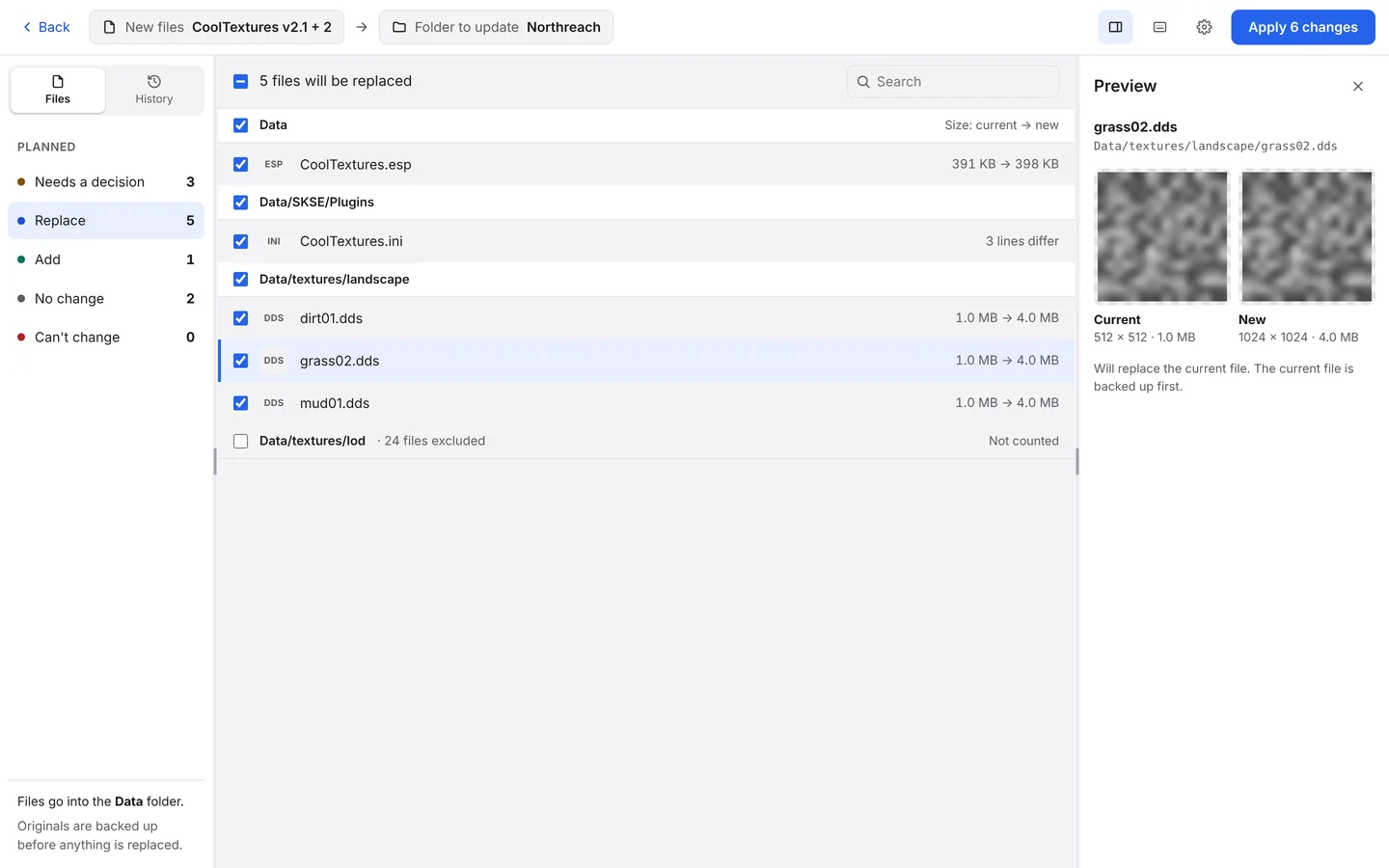
- Choose the shoot or client folder. BulkFileReplace finds each original, in whatever subfolder it's in.
- Check the matches. Current and New are shown side by side, so you can confirm it's the right frame. If a name exists in more than one folder, you choose.
- Apply. Originals are backed up first, and the run can be undone from History.
Questions
Will Lightroom or Bridge see the new versions?
The files are replaced in place with the same names, so catalog apps see the new versions once they refresh or re-read previews.
What if the edited file has a different extension?
Files are matched by name including the extension, so a TIFF won’t replace a JPG; it’s offered as a new file instead.
Re-edits in. Originals backed up.
Preview every change, automatic backups, undo any run. $19 once.